SaaD MaLiK

SaaD MaLiK
Showing posts with label Blogger Widgets. Show all posts

Friday, 15 November 2013

Add Contact Form to Blogger Pages

Every blogger want to make his/her blog is professional look, because if the blog gains a professional look then it will attract more visitors. So here Contact us form is valuable thing that make your page professional, like when someone want to contact you for its question or problem then he/she will contact you easily and he/she like your this easy service too.
Contact page is leading a very important role in the blog or website. Because with this every visitor can contact you with easily, Here contact us widget works very well, because only that is the widget with which every visitor can contact you easily.
So now let me tell you the whole procedure to add contact us form to your blogger pages, so that you could make your contact us page professional. See this very easy guide and follow it:


1. How to Add Contact Form Widget in blogger


i. Go to Blogger Dashboard >> Layout >> Add a Gadget
ii. Click on More Gadgets >> Contact Form       (Hint: On left upper side)

2. How to Hide Contact Form Widget from Blogger


You have to hide this widget because if you will not hide this widget then it show on that place where you have saved it e.g Right Slide Bar, on footer of your blog..

i. Go to Blogger Dashboard >> Template >> Edit HTML
ii. Then search for ]]></b:skin>
iii. Now Add the below code before ]]></b:skin>

#ContactForm1
{
display: none ! important;
}

 3. How to Add Contact Form in Blogger Pages


Now with this you can create Contact form in static page in blogger, where you wanna show your Contact form, so that a visitor can contact you by this form.

i. Go to Blogger Dashboard >> Pages >> New page >> Blank page
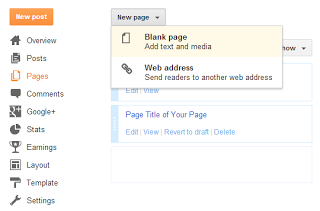

ii. Now Click on "HTML Tab"

iii. And paste the below set of code in the page

<div dir="ltr" style="text-align: left;" trbidi="on"><br /><style>#ContactForm1_contact-form-name{padding:5px;border:1px solid #dcdcdc;margin-bottom:20px;}#ContactForm1_contact-form-email{padding:5px;border:1px solid #dcdcdc;margin-bottom:20px;}#wccontactform{font:14px verdana;color:#222222;}#ContactForm1_contact-form-submit{margin-top:20px;background:#111111;;color:#ffffff;font:14px verdana;border:none;}.contact-form-email-message{padding:10px;max-width:350px;border:1px solid #dcdcdc;}</style> <br /><form id="wccontactform" name="contact-form"><input class="contact-form-name" id="ContactForm1_contact-form-name" name="name" size="30" type="text" value="Name" size="30" onblur='if (this.value == "") {this.value = "Name";}' onfocus='if (this.value == "Name") {this.value = "";}' /><br/><input class="contact-form-email" id="ContactForm1_contact-form-email" name="email" size="30" type="text" value="Email" size="30" onblur='if (this.value == "") {this.value = "Email";}' onfocus='if (this.value == "Email") {this.value = "";}' /><br/><textarea size="30" class="contact-form-email-message" id="ContactForm1_contact-form-email-message" name="email-message" rows="10" value="Message.." onblur='if (this.value == "") {this.value = "Message..";}' onfocus='if (this.value == "Message..") {this.value = "";}' ></textarea><br><input class="contact-form-button contact-form-button-submit" id="ContactForm1_contact-form-submit" type="button" value="Send" /><div style="max-width: 450px; text-align: center; width: 100%;"><div class="contact-form-error-message" id="ContactForm1_contact-form-error-message"></div><div class="contact-form-success-message" id="ContactForm1_contact-form-success-message"></div></div></form></div>

iv. And Set the page name as "Contact us" you can also set as your wish

Finally click on publish and you are done.

Saturday, 9 November 2013

Add Facebook Popup Like Box to Blogger Blog

Hi friends, Welcome back to Filezooby. In previous posts I told you about Facebook Simple and Floating like box, But this time I have brought a latest and great Facebook like box named as "Facebook Pop Up like box" which is worldwide famous and all's favourite. It is the best way ever to increase your Facebook likers. When any visitor will come to your blog it will appear first, and visitor surely click on this and with this your likes would be increased. Most of the blogger want to add this beautiful function to his/her blog or website, therefore I will tell you all procedure of adding this function to your blog or website. For adding this beautiful widget your blog then please follow these easy instructions to add it;


See the demo

How to Add Facebook Pop Up like box to Blogger Blog


i) Go to Blogger Dashboard> Layout> Add a Gadget
ii) Select "HTML/ JavaScript"
iii) Now Copy the below set of code and paste it in that HTML/ JavaScript Box with below changes.

<script src='https://ajax.googleapis.com/ajax/libs/jquery/1.6.1/jquery.min.js'></script><script src="https://facebookpopup2.googlecode.com/files/jquery.cbt-min.js"></script><script type="text/javascript">jQuery(document).ready(function(){if (document.cookie.indexOf('visited=true') == -1){var fifteenDays = 1000*60*60*24*29;var expires = new Date((new Date()).valueOf() + fifteenDays);document.cookie = "visited=true;expires=" + expires.toUTCString();$.colorbox({width:"399px", inline:true, href:"#exestylepopups"});}});</script><style type="text/css">#colorbox,#cboxOverlay,#cboxWrapper{position:absolute;top:0;left:0;z-index:9999;overflow:hidden}#cboxOverlay{position:fixed;width:99%;height:99%}#cboxMiddleLeft,#cboxBottomLeft{clear:left}#cboxContent{position:relative}#cboxLoadedContent{overflow:auto}#cboxTitle{margin:1}#cboxLoadingOverlay,#cboxLoadingGraphic{position:absolute;top:0;left:0;width:100%}#cboxPrevious,#cboxNext,#cboxClose,#cboxSlideshow{cursor:pointer}.cboxPhoto{float:left;margin:auto;border:1;display:block}.cboxIframe{width:99%;height:99%;display:block;border:1}#cboxOverlay{background:#001;opacity:0.5 !important}#colorbox{box-shadow:0 0 14px rgba(0,0,0,0.4);-moz-box-shadow:0 0 14px rgba(0,0,0,0.4);-webkit-box-shadow:0 0 14px rgba(0,0,0,0.4)}#cboxTopLeft{width:15px;height:15px;background:url(https://lh5.googleusercontent.com/-Oonf3hVB8Vk/UUVyfEEnnEI/AAAAAAAABBU/ymAdg3uHHkM/h120/controls.png) no-repeat 0 0}#cboxTopCenter{height:15px;background:url(http://goo.gl/O9QP9) repeat-x top left}#cboxTopRight{width:15px;height:15px;background:url(https://lh5.googleusercontent.com/-Oonf3hVB8Vk/UUVyfEEnnEI/AAAAAAAABBU/ymAdg3uHHkM/h120/controls.png) no-repeat -36px 0}#cboxBottomLeft{width:15px;height:44px;background:url(https://lh5.googleusercontent.com/-Oonf3hVB8Vk/UUVyfEEnnEI/AAAAAAAABBU/ymAdg3uHHkM/h120/controls.png) no-repeat 0 -32px}#cboxBottomCenter{height:44px;background:url(http://goo.gl/O9QP9) repeat-x bottom left}#cboxBottomRight{width:15px;height:44px;background:url(https://lh5.googleusercontent.com/-Oonf3hVB8Vk/UUVyfEEnnEI/AAAAAAAABBU/ymAdg3uHHkM/h120/controls.png) no-repeat -36px -32px}#cboxMiddleLeft{width:15px;background:url(https://lh5.googleusercontent.com/-Oonf3hVB8Vk/UUVyfEEnnEI/AAAAAAAABBU/ymAdg3uHHkM/h120/controls.png) repeat-y -175px 0}#cboxMiddleRight{width:15px;background:url(https://lh5.googleusercontent.com/-Oonf3hVB8Vk/UUVyfEEnnEI/AAAAAAAABBU/ymAdg3uHHkM/h120/controls.png) repeat-y -211px 0}#cboxContent{background:#ffe;overflow:visible}#cboxLoadedContent{margin-bottom:6px}#cboxLoadingOverlay{background:url(http://goo.gl/seJqH) no-repeat center center}#cboxLoadingGraphic{http://goo.gl/u3upJ) no-repeat center center}#cboxTitle{position:absolute;bottom:-24px;left:0;text-align:center;width:100%;font-weight:bold;color:#736f6f}#cboxCurrent{position:absolute;bottom:-24px;left:59px;font-weight:bold;color:#736f6f}#cboxPrevious,#cboxNext,#cboxClose,#cboxSlideshow{position:absolute;bottom:-28px;background:url(https://lh5.googleusercontent.com/-Oonf3hVB8Vk/UUVyfEEnnEI/AAAAAAAABBU/ymAdg3uHHkM/h120/controls.png) no-repeat 0px 0px;width:24px;height:24px;text-indent:-9999px}#cboxPrevious{left:0px;background-position:-50px -24px}#cboxPrevious.hover{background-position:-50px 0px}#cboxNext{left:27px;background-position:-74px -24px}#cboxNext.hover{background-position:-74px 0px}#cboxClose{right:0;background-position:-99px -24px}#cboxClose.hover{background-position:-99px 0px}.cboxSlideshow_on #cboxSlideshow{background-position:-124px 0px;right:26px}.cboxSlideshow_on #cboxSlideshow.hover{background-position:-150px 0px}.cboxSlideshow_off #cboxSlideshow{background-position:-149px -26px;right:26px}.cboxSlideshow_off #cboxSlideshow.hover{background-position:-124px 0px}#mdfb{font:12px/1.2 Arial,Helvetica,san-serif;color:#5c5757}#mdfb a,#mdfb a:hover,#mdfb a:visited{text-decoration:none}.mdbox-title{background:#000;color:#FFFEFE;font-size:21px !important;font-weight:bold;margin:9px 0;border:19px solid #ddd;-moz-border-radius:6px;-webkit-border-radius:6px;border-radius:6px;box-shadow:5px 5px 5px #CCC;padding:10px;line-height:24px;font-family:arial !important}</style><div style='display:none'><div id='exestylepopups' style='padding:10px; background:#ffff;'><center><h3 class="mdbox-title">Receive updates via Facebook. Click the Like Button Below...</h3></center><center><iframe src="//www.facebook.com/plugins/likebox.php?href=http%3A%2F%2Fwww.facebook.com%2FMuhammadTariqRafique&amp;width=299&amp;colorscheme=light&amp;show_faces=true&amp;border_color=%23ffffff&amp;stream=false&amp;header=false&amp;height=257" scrolling="no" frameborder="0" style="border:none; overflow:hidden; width:299px; height:257px;" allowtransparency="true"></iframe></center><p style=" float:right; margin-right:34px; font-size:10px;" > <a style=" font-size:10px; color:#397ad4; text-decoration:none;" href="
http://filezooby.blogspot.com/2013/11/facebook-popup.html">Get this widget</a></p></div></div>

1. Replace MuhammadTariqRafique with your Facebook page
2. If you want to appear widget on every reload of your blog visitor in all pages then, Just change true to false.
3. This widget will again Pop Up on your visitors desktop after 30 days, If he clears his browser cookies, If you want to minimize OR maximize time limit then just change *29 to your desire time. like 1 to 30 days
4. You can also change the Text in Blue text with you wish.

After this save it. You are done.

Hope you fully enjoyed this tutorial. If you like our tutorials then Subscribe us by enter your Email ID below Email Subscription box.


Add Facebook Floating Like Box on Mouse Hovering to Blogger Blog

Hello dear visitors, Today i am present to you in filezooby with a Beautiful Facebook floating like Box for blogger blog, Because this is the best and stylish widget ever, In previous post i told you about simple and clean Facebook like box for blog, But today i have brought a Floating Jquery Plugin Facebook like box for make your blog more beautiful and keep your eyes on your Facebook regularly fans. Floating Facebook like box is a beautiful mouse hovering box. Hope you must like this widget because this may be your favourite. Now you can see the demo image of Floating Facebook like box. If you really want to add this box to your blog then follow my instructions;


See the demo

First of all you have to Add Jquery Plugin to your Blog, See the instructions


How to add facebook Floating Like Box to Blogger in 2 Steps


Step 1

1. Go to Blogger Dashboard> Template> Edit HTML
2. Search for </head> tag in your template and just before it paste the below Jquery code (You can ignore this step if Jquery Link is already added in your template)


<script src='https://ajax.googleapis.com/ajax/libs/jquery/1.6.1/jquery.min.js' type='text/javascript'/>

Step 2

1. Go to Blogger Dashboard> Layout> Add a Gadget
2. Select HTML/ JavaScipt and paste the below set of code


<script type="text/javascript"> /*<![CDATA[*/ jQuery(document).ready(function() {jQuery(".abtlikebox").hover(function() {jQuery(this).stop().animate({right: "0"}, "medium");}, function() {jQuery(this).stop().animate({right: "-250"}, "medium");}, 500);}); /*]]>*/ </script> <style type="text/css"> .abtlikebox{background: url("https://blogger.googleusercontent.com/img/b/R29vZ2xl/AVvXsEhY0Dlm9wRE7hRk8i3aBtESG6OdGZs0pVwqDM4n8wvF3qqtJNsk9brqUw1uUebt5KmRBVcWpxG3Wc7zCaHX_MPOyRDfTATG9m9cN7Iy1O3qtXi4orSLLwkz3PjRmb8PQQI8sd0qnsXsrLw/s320/fb1-right.png") no-repeat scroll left center transparent !important; float: right;height: 270px;padding: 0 5px 0 46px;width: 245px;z-index:  99999;position:fixed;right:-250px;top:20%;} .abtlikebox div{ padding: 0; margin-right:-8px; border:4px solid  #3b5998; background:#fafafa;} .abtlikebox span{bottom: 4px;font: 8px "lucida grande",tahoma,verdana,arial,sans-serif;position: absolute;right: 6px;text-align: right;z-index: 99999;} .abtlikebox span a{color: gray;text-decoration:none;} .abtlikebox span a:hover{text-decoration:underline;} } </style> <div class="abtlikebox" style="">     <div>     <iframe src="http://www.facebook.com/plugins/likebox.php?href=https://www.facebook.com/MuhammadTariqRafique&amp;width=245&amp;colorscheme=light&amp;show_faces=true&amp;border_color=white&amp;connections=9&amp;stream=false&amp;header=false&amp;height=270" scrolling="no" frameborder="0" scrolling="no" style="border: white; overflow: hidden; height: 270px; width: 245px;background:#fafafa;"></iframe><span><a href="http://filezooby.blogspot.com/2013/11/facebook-floating.html"> Grab this widget</a></span>     </div> </div>

Now just replace https://www.facebook.com/MuhammadTariqRafique with your Facebook Fan page, and save it.

Hope you like our tutorials very much. If you want more tutorials then Subscribe us by entering your email ID.


Add Facebook Simple Like Box for Blogger

Facebook fan page is a latest method and a great way to promote your blog/website. Facebook like box also make your blog more beautiful and tell us how many Facebook regular fans on our blog. I am also using this Simple widget because with this widget your visitors easily like your blog by click on that facebook like button. Hope you like this widget too because some peoples like simple style like me. Facebook like box is widely used social plugin from Facebook developers, this Facebook like box will help your visitors to become regular reader just by clicking the like button. If want to add this button then you have to follow my simple procedure;


See the Demo


1. Go to Blogger Dashboard> Layout> Add a Gadget
2. Select HTML/JavaScript> Paste the below set of code


<iframe src="//www.facebook.com/plugins/likebox.php?href=https://www.facebook.com/MuhammadTariqRafique&width=292&height=258&colorscheme=light&show_faces=true&border_color&stream=false&header=false&" style="border:none; overflow:hidden; width:292px; height:258px;" ></iframe>

Just replace https://www.facebook.com/MuhammadTariqRafique with your Facebook Fan page and change 292 with your desire width and 258 with your desire height according to your desire template's width and height.

After that you have done it.


Monday, 21 October 2013

Add Stylish Subscribe via Email Widget to Blogger Blog

In previous post we had discuss about Simple Feed Burner Subscription but in this post i will told you about Stylish Subscribe via Email Widget for blog/site. In previous post i had told you all about Subscription widget that how it works and how is useful it is. Now we learn a method for adding it to your blog just follow my given instructions below;


How to Add Stylish Subscribe via Email Widget to Blogger Blog


1. Go to Blogger Dashboard> Layout> Add a Gadget


2. Now Click on "HTML/JavaScript" Gadget


3. After this Copy the below set of Code and Paste it into empty box


<style>.hl-email{background:url(https://blogger.googleusercontent.com/img/b/R29vZ2xl/AVvXsEhoptY5SQY0DhZa3k0VH6lwysznIyMQdm2Mi7BFln3mj77K_X2scsBAR7Hnv8m-YQVwh_5vn5_rlU8_v7-yRr1HClHcOrL2KR2V903xCEu6sX9Bmra99g4SjcdL57aMhWuMYHWo4ltL6pU/s1600/mail.png) no-repeat 0px 12px ;width:300px;padding:10px 0 0 55px;float:left;font-size:1.4em;font-weight:bold;margin:0 0 10px 0;color:#686B6C;}.hl-emailsubmit{background:#9B9895;cursor:pointer;color:#fff;border:none;padding:3px;text-shadow:0 -1px 1px rgba(0,0,0,0.25);-moz-border-radius:6px;-webkit-border-radius:6px;border-radius:6px;font:12px sans-serif;}.hl-emailsubmit:hover{background:#E98313;}.textarea{padding:2px;margin:6px 2px 6px 2px;background:#f9f9f9;border:1px solid #ccc;resize:none;box-shadow:inset 1px 1px 1px rgba(0,0,0,0.1);-moz-box-shadow:inset 1px 1px 1px rgba(0,0,0,0.1);-webkit-box-shadow:inset 1px 1px 1px rgba(0,0,0,0.1); font-size:13px;width:130px;color:#666;}</style><div class="hl-email">Subscribe via Email <form action="http://feedburner.google.com/fb/a/mailverify" id="feedform" method="post" target="popupwindow" onsubmit="window.open('http://feedburner.google.com/fb/a/mailverify?uri=filezooby', 'popupwindow', 'scrollbars=yes,width=550,height=520');return true"><input gtbfieldid="3" class="textarea" name="email" onblur="if (this.value == &quot;&quot;) {this.value = &quot;Enter email address here&quot;;}" onfocus="if (this.value == &quot;Enter email address here&quot;) {this.value = &quot;&quot;;}" value="Enter email address here" type="text" /><input type="hidden" value="filezooby" name="uri"/><input type="hidden" name="loc" value="en_US"/><input class="hl-emailsubmit" value="Submit" type="submit" /></form></div>

Note: Now you have to make following changes
  • Replace the URL Address in Blue to change the email icon
  • Increase/Decrease the 130 width value for a wider text area
  • Replace http://feedburner.google.com/fb/a/mailverify?uri=filezooby with your feed Burner Email feeding link
  • replace filezooby with your feed titile.
Finally Save it.

Add a Simple Feed Burner Email Subscribe Widget to Blogger Blog

Subscription widget helps to increase daily readers of your site or blog. In blogspot this Subscription widget is already added but when we manually add this widget from its real site then it bit different from blogger Subscription widget and in other platform we have to add this Subscription Widget manually to our site or blog. So today i will learn you a way to add this widget to your blog, Its very simple;


Add a Simple Feed Burner Email Subscribe Widget to Blogger Blog


1. Go to this link feedburner.com and Sign in with your Gmail ID
2. Now Click on your Blog like my blog name "Your Blog Helper"
3. After this Click on Publicize> Email Subscriptions
4. Then Copy the given Code and paste it into your blog

Finally you are done.

Twitter Delicious Facebook Digg Stumbleupon Favorites More